Interview Coding Take-Homes: Part 3#

Programming, Software, Interviewing

UCLA Health - Population Analysis#

This take-home was about the data ingestion and cleaning for the UCLA Health population project. The goal was to take messy JSON from an API and turn it into a clean CSV, so the analysis and visualization could focus on the real questions without getting bogged down in data cleanup.

Goals#

  • Produce a CSV with a fixed header order and stable types.

  • Keep each transformation small and unit-testable.

  • Fail fast on missing required fields and log useful diagnostics.

Why this approach#

Even though the dataset was small and straightforward, it had all the typical real-world issues: keys with spaces, inconsistent casing, and numbers as strings. Instead of using heavy tools, I focused on keeping things clear, with predictable output and a simple flow I could easily follow.

Repository#

The implementation is in the population-analysis repo under the Analysis/ directory. See the source and examples at:

population-analysis (Analysis)

Process overview#

  1. Load JSON from the API or from the cached sample used in tests.

  2. Rename and normalize keys so everything aligns with the internal schema.

  3. Coerce types (strings -> ints/dates) and fail if required data is missing.

  4. Emit two CSVs: one raw mapping for auditing and one cleaned file for analysis.

Key implementation details#

Handling messy JSON keys#

The prompt demanded a tight mapping between API fields and output columns. Because the API returns keys with spaces and wobbly casing, the data model leans on [JsonPropertyName] attributes to translate them into clean C# properties:

1    [JsonPropertyName("ID State")]
2    public string IdState { get; set; } = "";
3    public string State { get; set; } = "";
4    [JsonPropertyName("ID Year")]
5    public int IdYear { get; set; }
6    public string Year { get; set; } = "";
7    public int Population { get; set; }
8    [JsonPropertyName("Slug State")]
9    public string SlugState { get; set; } = "";

This keeps the mapping explicit and makes it obvious which API field feeds each column.

Fetching and caching the data#

The application calls the public census API, but I do not re-fetch on every test run. Instead the client caches the payload locally so the API stays quiet while I iterate:
1    var data = await GetFromCache();
2    if (data != null) return data;
3
4    var httpClient = httpClientFactory.CreateClient(nameof(Api));
5    httpClient.BaseAddress = new Uri("https://datausa.io/");

On a fresh pull, the JSON hits disk before deserialization. That keeps the workflow testable and reinforces a clean separation of concerns:

 1    try
 2    {
 3        json.Seek(0, SeekOrigin.Begin);
 4        await json.CopyToAsync(cacheDestination);
 5        await cacheDestination.FlushAsync();
 6        log.LogDebug("API data written to cache.");
 7    }
 8    catch
 9    {
10        log.LogDebug("Failed to write API JSON result cache.");
11    }
12    json.Seek(0, SeekOrigin.Begin);
13    data = await JsonSerializer.DeserializeAsync<Result>(json);

Example input (trimmed)#

This is an example of the API shape-keys with spaces, mixed casing, and numeric types that arrive as JSON numbers.

1{
2    "data": [
3        { "ID State": "04000US01", "State": "Alabama", "Year": 2023, "Population": 5054253, "Slug State": "alabama" },
4        { "ID State": "04000US02", "State": "Alaska", "Year": 2023, "Population": 733971, "Slug State": "alaska" }
5    ]
6}

The ingest pipeline renames those columns to id, state, slug, etc., and asserts that the types stay stable before writing the normalized CSV.

Normalized CSV (representative rows)#

The cleaned CSV fixes the header order and uses explicit types. Representative rows:

id,state,slug,year,population
04000US01,Alabama,alabama,2023,5054253
04000US02,Alaska,alaska,2023,733971

Notes on implementation#

  • API keys such as "ID State" and "Slug State" map to canonical names (id, slug) so downstream code never reasons about the raw schema.

  • Validation is blunt by design: missing required fields fail the run; weird values get logged for inspection instead of disappearing quietly.

  • Every time a new API field appeared, I did the same ritual: dump a single response to disk, diff it against the schema, and verify the mapping by regenerating the CSV. That quick loop kept regressions visible without a ton of ceremony.

Testing and verification#

Testing the pipeline#

Before trusting the CSV, I walk through the same routine I use on most take-homes: run the automated suite, then spot-check the binary output.

$ cd population-analysis
$ dotnet test

The tests live in population-analysis/Test and use xUnit + Moq. They verify that the ingestion pipeline does what I expect even when the API or filesystem behaves badly.

What the tests cover#

  • Test/AnalysisApi.cs drives the API client through both code paths. It ensures cached payloads short-circuit HTTP calls, verifies that cache files are written before parsing, and checks that failures log meaningful errors.

  • Test/AnalysisReport.cs exercises the aggregation layer. It confirms that populations group by state/year, headers stay deterministic, sorted tables behave, and the factor column lines up with each year.

  • Test/AnalysisReport.cs also reflection-loads the Report helpers so I can assert on the tables without spinning up the CLI.

Manual sanity checks#

Automated tests catch regressions, but I still run a quick end-to-end pass to see the CSV with my own eyes:

$ cd population-analysis
$ dotnet run --project Analysis/Analysis.csproj
Enter a path to write the CSV file to:

I point it at population.csv, inspect the generated CSV/raw pair, and spot-check a few rows against the original JSON. When a slug or population looks wrong, I can walk back through the normalization rules immediately.

Running with Docker#

If you prefer not to set up .NET locally, the application also runs in a Docker container. The image is multi-arch and supports both AMD64 and ARM64, so it should work on most systems.

Pull and run it like this:

$ docker run \
    -u $(id -u):$(id -g) \
    -v /path/to/output/directory:/csv_destination \
    --rm -it \
    aholmes0/population-analysis:latest

This mounts a local directory to /csv_destination inside the container, where the CSV files get written. The -u flag runs as your user ID to avoid permission issues with the output files.

Tradeoffs#

  • The pipeline favors clarity and observability over extreme throughput. It assumes the dataset fits on one machine without drama.

  • Formal schema enforcement (JSON Schema, etc.) would help for larger teams, but I skipped it here to keep iteration fast.

Analysis and findings#

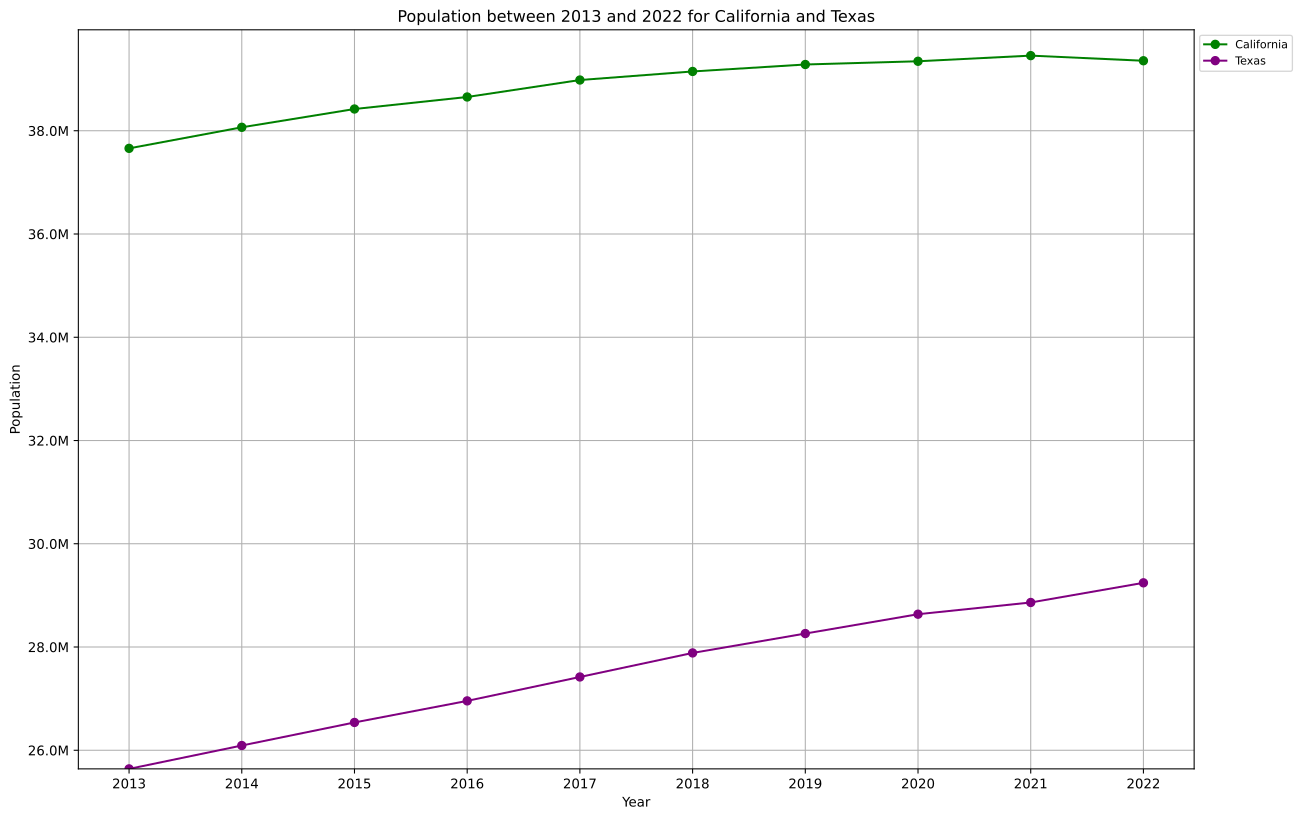
With the cleaned CSV ready, I shifted into exploration mode. The dataset spans multiple years across every U.S. state and territory, so it is a natural fit for trend comparisons. The headline question people kept asking was: Are Californians moving to Texas? Rather than lean on anecdotes, I ran the numbers.

Key steps:

  • Compute year-over-year population changes per state.

  • Normalize growth rates with z-scores and compare peers head-to-head.

  • Flag periods where migration signals diverged.

  • Plot each view so the story is obvious without reading code.

Result: both California and Texas keep growing, and their growth curves tend to move in tandem. That implies broader economic or demographic drivers rather than a one-way California -> Texas pipeline.

Testing the idea#

I do not accept charts at face value, so I poked at the data from a few angles:

  • Cross-check the raw counts. Before normalizing, I spot-checked California and Texas populations against the Census CSV to ensure the ingest layer did not mangle digits. Having the raw CSV beside the formatted one made this painless.

  • Validate the story with multiple transforms. The z-score plot highlights divergences, but I also built the rank-change visualization to confirm the same periods popped out. If two independent views disagree, the notebook gets deleted.

  • Interrogate the edges. Whenever a state’s growth looked extreme, I tracked it back to the underlying rows to see if the spike came from a real trend or a data glitch. That habit kept the write-up grounded in facts, not vibes.

Output and visualization#

The cleaned population data:

 1"State Name","2013","2014","2015","2016","2017","2018","2019","2020","2021","2022","2022 Factors"
 2"Alabama","4799277","4817678 (0.38%)","4830620 (0.27%)","4841164 (0.22%)","4850771 (0.20%)","4864680 (0.29%)","4876250 (0.24%)","4893186 (0.35%)","4997675 (2.14%)","5028092 (0.61%)","2;2;97;12959"
 3"Alaska","720316","728300 (1.11%)","733375 (0.70%)","736855 (0.47%)","738565 (0.23%)","738516 (-0.01%)","737068 (-0.20%)","736990 (-0.01%)","735951 (-0.14%)","734821 (-0.15%)","389;1889"
 4"Arizona","6479703","6561516 (1.26%)","6641928 (1.23%)","6728577 (1.30%)","6809946 (1.21%)","6946685 (2.01%)","7050299 (1.49%)","7174064 (1.76%)","7079203 (-1.32%)","7172282 (1.31%)","2;13;311;887"
 5"Arkansas","2933369","2947036 (0.47%)","2958208 (0.38%)","2968472 (0.35%)","2977944 (0.32%)","2990671 (0.43%)","2999370 (0.29%)","3011873 (0.42%)","3006309 (-0.18%)","3018669 (0.41%)","3;47;79;271"
 6"California","37659181","38066920 (1.08%)","38421464 (0.93%)","38654206 (0.61%)","38982847 (0.85%)","39148760 (0.43%)","39283497 (0.34%)","39346023 (0.16%)","39455353 (0.28%)","39356104 (-0.25%)","2;2;2;53;92821"
 7"Colorado","5119329","5197580 (1.53%)","5278906 (1.56%)","5359295 (1.52%)","5436519 (1.44%)","5531141 (1.74%)","5610349 (1.43%)","5684926 (1.33%)","5723176 (0.67%)","5770790 (0.83%)","2;5;59;9781"
 8"Connecticut","3583561","3592053 (0.24%)","3593222 (0.03%)","3588570 (-0.13%)","3594478 (0.16%)","3581504 (-0.36%)","3575074 (-0.18%)","3570549 (-0.13%)","3605330 (0.97%)","3611317 (0.17%)","3611317"
 9"Delaware","908446","917060 (0.95%)","926454 (1.02%)","934695 (0.89%)","943732 (0.97%)","949495 (0.61%)","957248 (0.82%)","967679 (1.09%)","981892 (1.47%)","993635 (1.20%)","5;37;41;131"
10"District of Columbia","619371","633736 (2.32%)","647484 (2.17%)","659009 (1.78%)","672391 (2.03%)","684498 (1.80%)","692683 (1.20%)","701974 (1.34%)","683154 (-2.68%)","670587 (-1.84%)","3;223529"

Key analysis code blocks and observations:

Helper Functions for Analysis#

Before diving into visualizations, I defined helper classes and functions to handle the data transformations consistently across plots.

FillData class and zscore helper functions#
 1class FillData(NamedTuple):
 2    year1: str
 3    year2: str
 4    zscore1: float
 5    zscore2: float
 6    change1: float
 7    change2: float
 8    middle_x: float
 9    middle_y: float
10
11def zscore(change):
12    """Calculate the zscore of a change."""
13    return (change - change.mean()) / change.std()
14
15def get_fill_data(year_idx, change1, change2, zscore1, zscore2):
16    """Get data needed for plot_fill(...) and fill(...)"""
17    year1, year2 = change1.index[i], change1.index[i + 1]
18    zscore_change1 = zscore1.iloc[i + 1] - zscore1.iloc[i]
19    zscore_change2 = zscore2.iloc[i + 1] - zscore2.iloc[i]
20    middle_x = (year_idx + year_idx + 1) / 2
21    middle_y = (zscore1.iloc[i] + zscore1.iloc[i + 1]) / 2
22    return FillData(year1, year2, zscore1, zscore2, zscore_change1, zscore_change2, middle_x, middle_y)
23
24def plot_fill(change1: float, change2: float, fill_data: FillData, color1: str = '#1f77b4', color2: str = '#ff7f0e'):
25    """Draws the plot for fill data between fill_data.year1 and fill_data.year2"""
26    if change1 < 0 and change2 < 0:  # Both changes are declining
27        if abs(change1) > abs(change2):  # First change declines more
28            fill(fill_data, color1, ('\u2193', color1), ('\u2193', color2), 0.5)
29        else:  # Second change declines more
30            fill(fill_data, color2, ('\u2193', color1), ('\u2193', color2), 0.5)
31    elif change1 > 0 and change2 > 0:  # Both changes are growing
32        if abs(change1) < abs(change2):  # Change1 grows less
33            fill(fill_data, color2, ('\u2191', color1), ('\u2191', color2), 0.1)
34        else:  # Change2 grows less
35            fill(fill_data, color2, ('\u2191', color1), ('\u2191', color2), 0.1)
36    else:  # One is growing, the other is declining
37        change1_arrow = '\u2193' if change1 < 0 else '\u2191'
38        change2_arrow = '\u2193' if change2 < 0 else '\u2191'
39        if change1 < change2:  # Change1 declines more or grows less
40            fill(fill_data, color1, (change1_arrow, color1), (change2_arrow, color2), 0.5)
41        else:  # Change 2 declines more or grows less
42            fill(fill_data, color2, (change1_arrow, color1), (change2_arrow, color2), 0.5)
43
44def fill(
45    fill_data: FillData,
46    color: str,
47    arrow_left: tuple[str, str],
48    arrow_right: tuple[str, str],
49    alpha: float
50):
51    """Fills the space between fill_data.year1 and fill_data.year2"""
52    plt.fill_between([fill_data.year1, fill_data.year2],
53                     fill_data.zscore1.iloc[i:i + 2], fill_data.zscore2.iloc[i:i + 2],
54                     facecolor=color, alpha=alpha)
55    middle_x = fill_data.middle_x
56    middle_y = fill_data.middle_y
57    plt.gca().add_patch(FancyBboxPatch((middle_x - 0.10, middle_y - 0.05), 0.1, 0.1,
58                                        boxstyle="round,pad=0.01", facecolor='white', edgecolor='none', zorder=2))
59    plt.gca().add_patch(FancyBboxPatch((middle_x + 0.0, middle_y - 0.05), 0.1, 0.1,
60                                        boxstyle="round,pad=0.01", facecolor='white', edgecolor='none', zorder=2))
61    plt.annotate(
62        arrow_left[0],

Year-over-Year Change Analysis#

The first visualization examines year-over-year population changes, normalized by z-scores to compare states on the same scale. The plot highlights periods where California and Texas growth rates diverged significantly, using filled areas and arrows to mark those intervals.

YoY change calculation and plotting#
 1plt.figure(figsize=(15, 10))
 2plt.gca().yaxis.set_major_formatter(FuncFormatter(percent_formatter))
 3plt.plot(california_change.index, california_zscore, marker='o', label='California', color=COLOR1)
 4plt.plot(texas_change.index, texas_zscore, marker='o', label='Texas', color=COLOR2)
 5for i in range(len(california_zscore) - 1):
 6    fill_data = get_fill_data(i, california_change, texas_change, california_zscore, texas_zscore)
 7    ca_change = fill_data.change1
 8    tx_change = fill_data.change2
 9    plot_fill(ca_change, tx_change, fill_data)
10plt.title('Normalized Year-over-Year Percentage Change in Population for California and Texas')
11plt.xlabel('Year')
12plt.ylabel('Z-Score of % Change')
13draw_legend('California', 'Texas')
14plt.grid(True)
15plt.show()
Year-over-year population change plot with z-score normalization

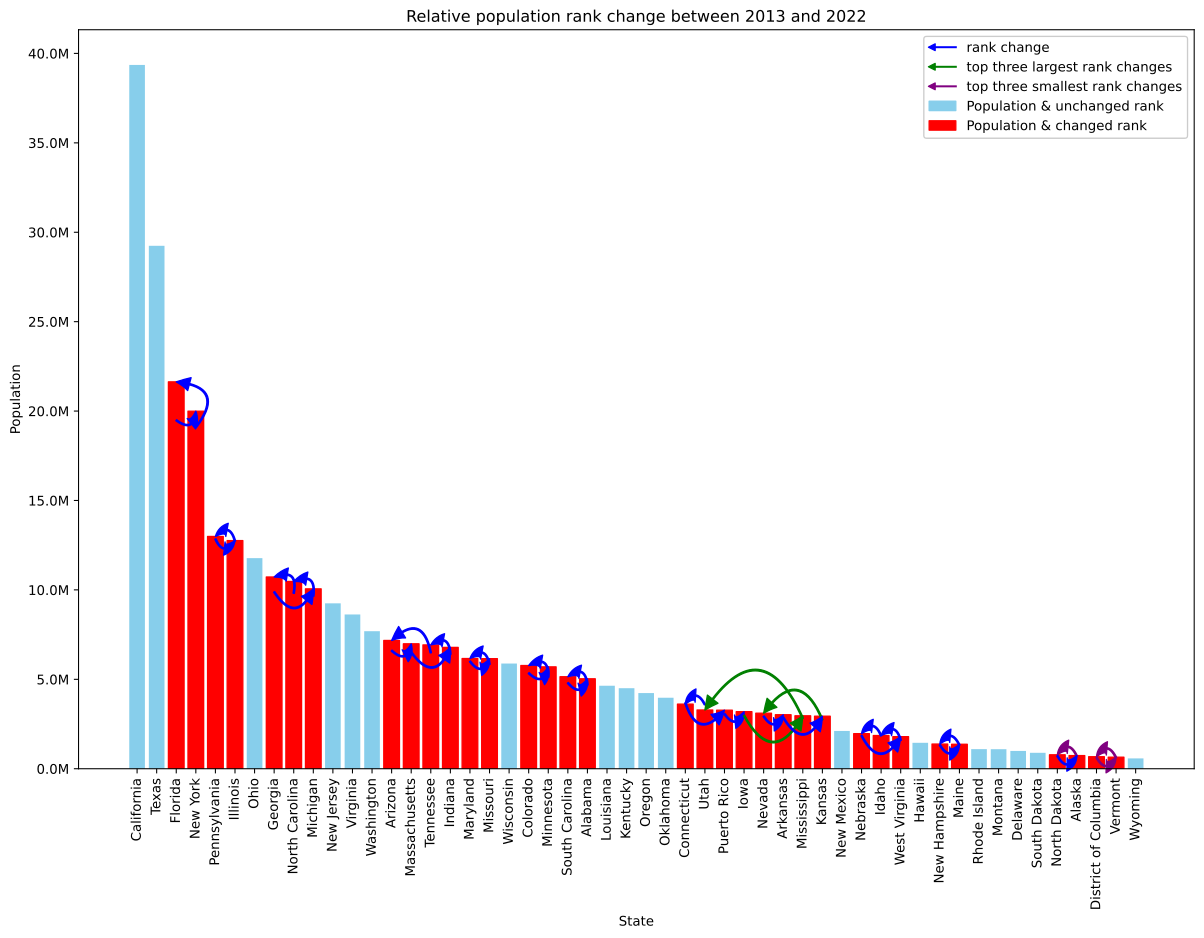
Rank Change Visualization#

This plot shows how states’ population ranks shifted from 2013 to 2022, with bars representing 2022 populations and curved arrows indicating rank changes. States that moved up or down in ranking are highlighted with colored bars and connecting arcs.

Rank change plotting with custom legend handler#
 1class HandlerArrowLine(HandlerLine2D):
 2    def create_artists(self, legend, orig_handle, xdescent, ydescent, width, height, fontsize, trans):
 3        # Create a line and an arrowhead as separate artists
 4        padding = 2
 5        line = Line2D([xdescent + padding, width - xdescent], [height / 2, height / 2], linestyle=orig_handle.get_linestyle(), color=orig_handle.get_color())
 6        arrow = Line2D([xdescent + padding], [height / 2], marker='<', color=orig_handle.get_color(), markersize=fontsize / 2, linestyle='None')
 7        return [line, arrow]
 8
 9plt.figure(figsize=(15, 10))
10plt.gca().yaxis.set_major_formatter(FuncFormatter(millions_formatter))
11bars_2022 = plt.bar(pop_2022_sorted.index, pop_2022_sorted, color=COLOR5)
12plt.title('Relative population rank change between 2013 and 2022')
13plt.xlabel('State')
14plt.ylabel('Population')
15plt.xticks(rotation=90)
16
17line_handles = [
18    Line2D([0], [1], color=COLOR3, marker='<', linestyle='-', label='rank change'),
19    Line2D([0], [1], color=COLOR1, marker='<', linestyle='-', label='top three largest rank changes'),
20    Line2D([0], [1], color=COLOR2, marker='<', linestyle='-', label='top three smallest rank changes'),
21]
22block_handles = [
23    patches.Patch(color=COLOR5, label='Population & unchanged rank'),
24    patches.Patch(color=COLOR4, label='Population & changed rank')
25]
26plt.legend(handles=line_handles + block_handles,  handler_map={handle: HandlerArrowLine() for handle in line_handles}).get_frame().set_alpha(1)
27ax = plt.gca()
28for bar, state in zip(bars_2022, pop_2022_sorted.index):
29    if state in changed_states:
30        bar.set_color(COLOR4)
31        prev_pos = order_2013.index(state)
32        new_pos = order_2022.index(state)
33        con = ConnectionPatch(
34            xyA=(prev_pos, pop_2013_sorted[state]),
35            xyB=(new_pos, pop_2022_sorted[state]),
36            coordsA="data", coordsB="data",
37            axesA=ax, axesB=ax,
38            color=COLOR1 if state in top_3_states_by_position_change else (COLOR2 if state in bottom_3_states_by_position_change else COLOR3),
39            arrowstyle=ArrowStyle("simple", head_width=1, head_length=1, tail_width=0.1), 
40            fill=True,
41            linewidth=1,
42            connectionstyle="arc3,rad=0.9"
43        )
44        ax.add_patch(con)
45plt.show()
Population rank change visualization with arrows

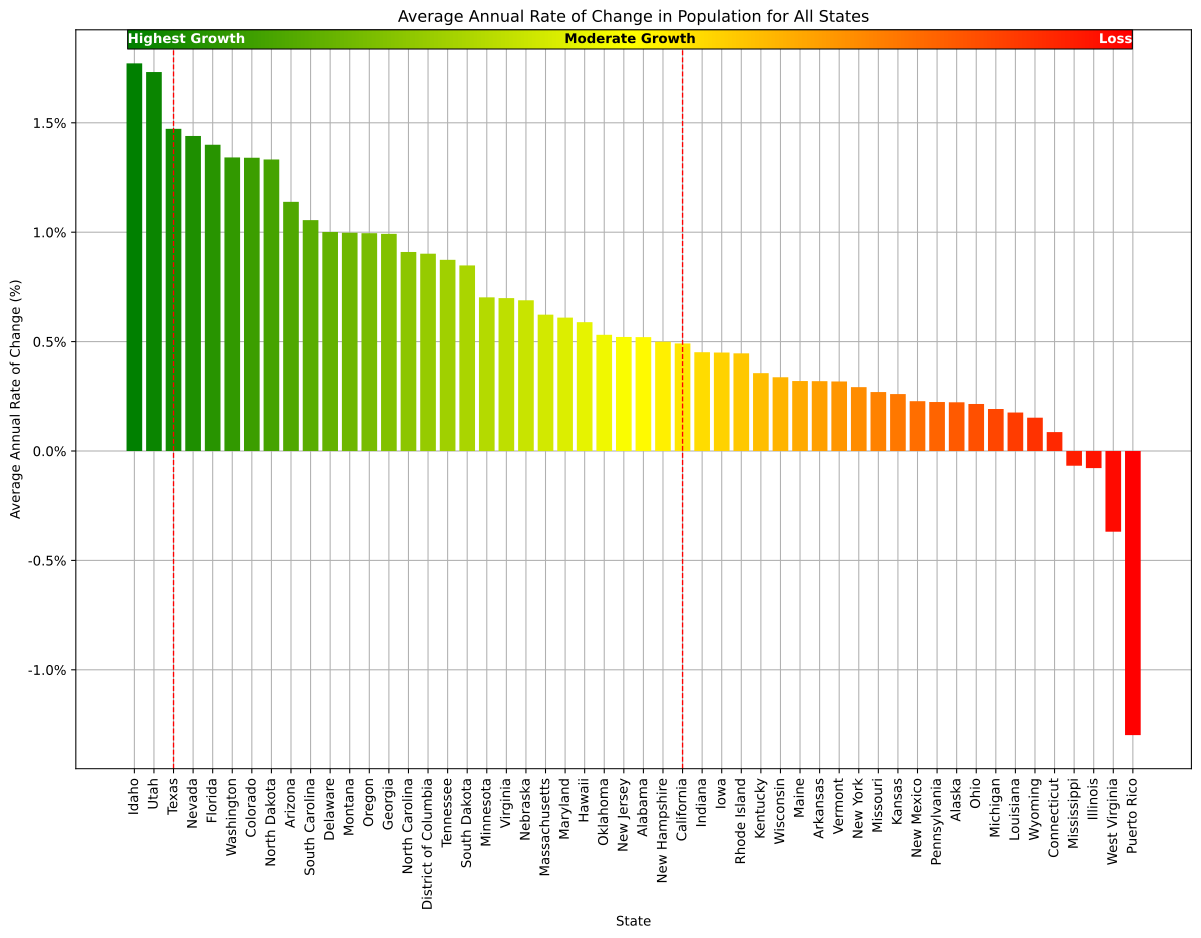
Average Annual Growth Rate Map#

The final visualization maps average annual growth rates across all states using a color gradient, with vertical markers for California and Texas. The horizontal color bar provides context for the growth spectrum from highest growth to population loss.

Gradient colormap visualization#
 1colors = ["green", "yellow", "red"]
 2cmap = LinearSegmentedColormap.from_list("mycmap", colors)
 3norm = plt.Normalize(0, len(average_annual_rate_of_change_sorted) - 1)
 4fig, ax = plt.subplots(figsize=(15, 10))
 5plt.gca().yaxis.set_major_formatter(FuncFormatter(percent_formatter))
 6bars = plt.bar(
 7    average_annual_rate_of_change_sorted.index,
 8    average_annual_rate_of_change_sorted,
 9    color=[cmap(norm(i)) for i in range(len(average_annual_rate_of_change_sorted))],
10    zorder=2 # hide grid behind bars
11)
12ax = plt.gca()
13for state in ['California', 'Texas']:
14    idx = average_annual_rate_of_change_sorted.index.get_loc(state)
15    bar = bars[idx]
16    x = bar.get_x() + bar.get_width() / 2
17    ax.axvline(x=x, color='red', linestyle='--', linewidth=1)
18plt.title('Average Annual Rate of Change in Population for All States')
19plt.xlabel('State')
20plt.ylabel('Average Annual Rate of Change (%)')
21plt.xticks(rotation=90)
22plt.grid(True, zorder=0) # hide grid behind bars
23sm = plt.cm.ScalarMappable(cmap=cmap, norm=norm)
24sm.set_array([])
25sm.set_clim(0, len(average_annual_rate_of_change_sorted) - 1)
26cbar_ax = fig.add_axes([0.161, 0.86, 0.698, 0.02])
27cbar = plt.colorbar(sm, cax=cbar_ax, orientation='horizontal')
28cbar.set_ticks([])
29cbar_ax.text(0.0, 0.5, 'Highest Growth', va='center', ha='left', color='white', fontweight='bold', transform=cbar_ax.transAxes)
30cbar_ax.text(0.5, 0.5, 'Moderate Growth', va='center', ha='center', color='black', fontweight='bold', transform=cbar_ax.transAxes)
31cbar_ax.text(1.0, 0.5, 'Loss', va='center', ha='right', color='white', fontweight='bold', transform=cbar_ax.transAxes)
32plt.show()
Average annual growth rate gradient map

The full analysis including charts and findings is available in the Jupyter notebook:

PopulationAnalysis.ipynb

Conclusion#

In the end, this take-home took raw JSON and turned it into a clean CSV by breaking it down into small, clear steps. That makes it simple to test and audit, and gets you ready for the analysis. The practical approach-caching to skip repeated API calls, clear key mappings, and straightforward validation- shows good thinking and communication, not unnecessary complexity.